Pricelabs Integration with Houfy
Increase revenue with data-driven pricing from Pricelabs & connect with Houfy.
Última atualização 24 de agosto de 2026
Connect PriceLabs to Houfy so your dynamic rates sync automatically — no more copying prices over by hand. All you need is your API Access Token, grabbed straight from the PriceLabs card on the Software Partners page.
How to connect PriceLabs to Houfy
PriceLabs is a direct software partner of Houfy. Once connected, PriceLabs pushes rate updates into your Houfy listings automatically — no manual re-entry needed each time you adjust pricing.
Step 1: Copy your Houfy API token
Click your profile picture (top right) to open the menu, then click Manage Listings.
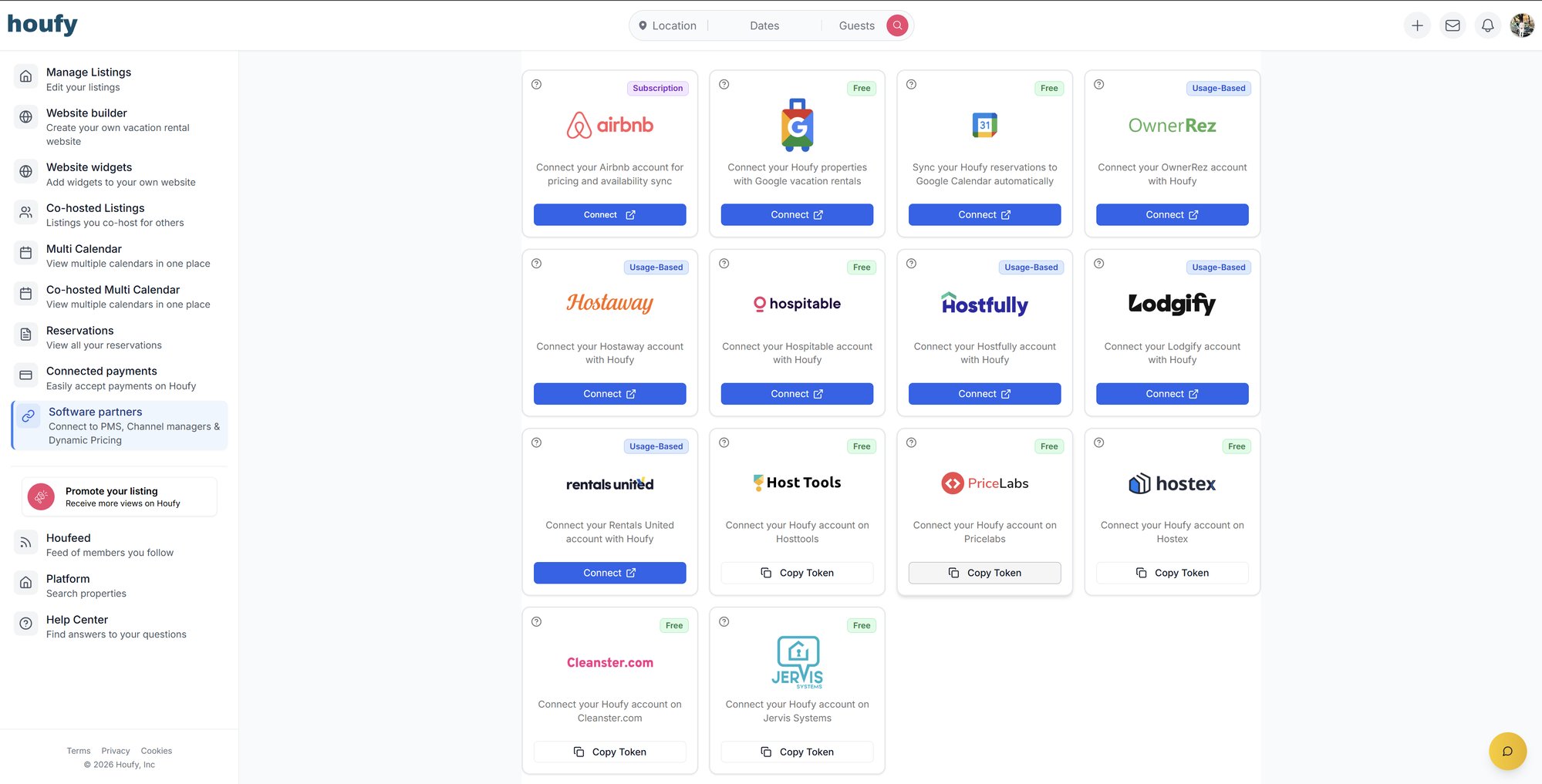
In the left sidebar, click Software Partners ("Connect to PMS, Channel managers & Dynamic Pricing"). This opens the Software Partners page.
Scroll to the Connect an Account section and find the PriceLabs card.
Click Copy Token.
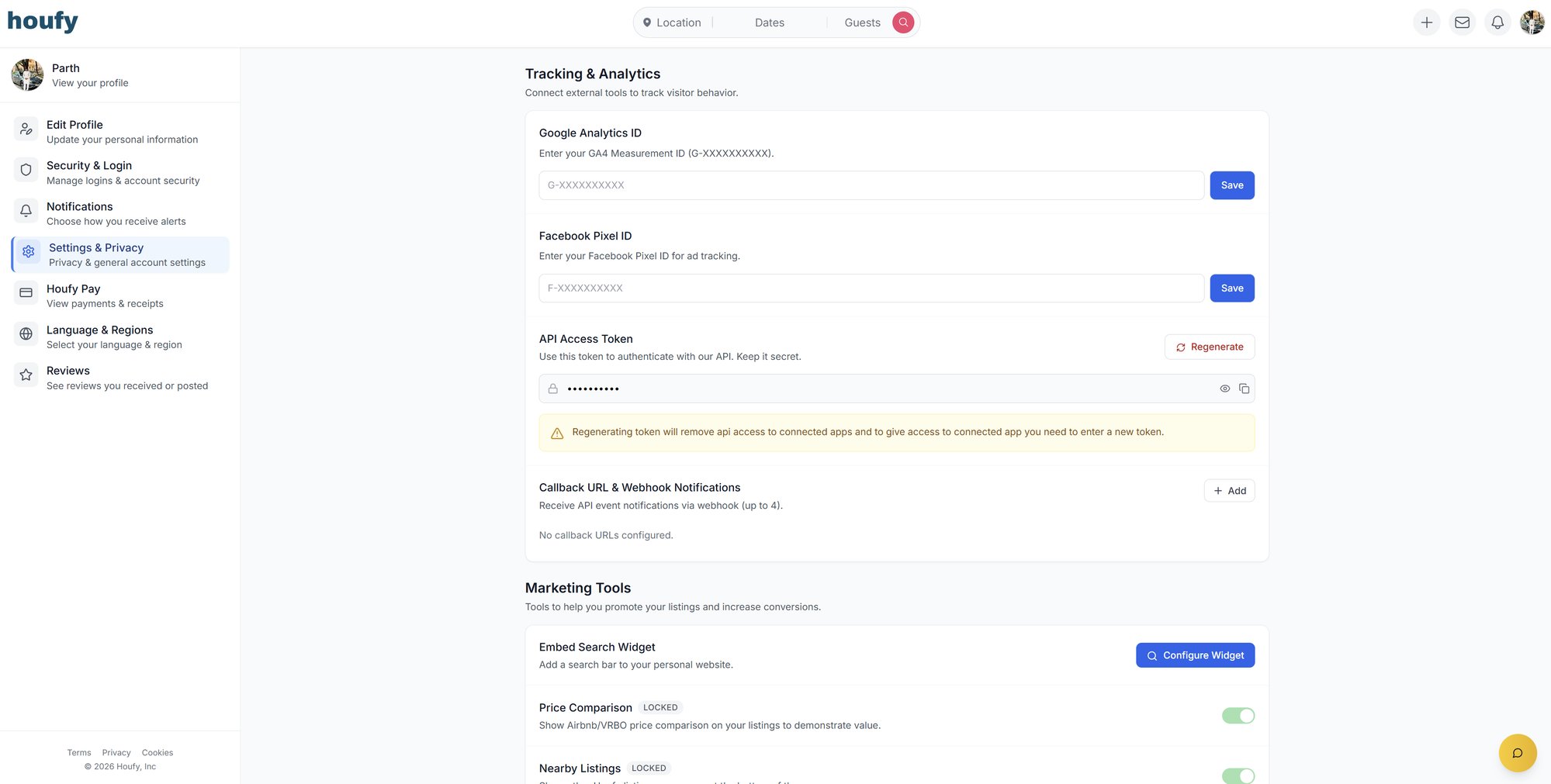
Alternative location: this is the same account-wide API Access Token also shown under Menu > Settings & Privacy > API Access Token (screenshot below). Either screen works — the Software Partners card is just the quickest path when you're specifically connecting PriceLabs.
Step 2: Connect from PriceLabs
In your PriceLabs account, click Add your listings.
Select Houfy from the list of integrations.
Paste the token you copied in Step 1.
Click Connect.
Your Houfy listings will appear on your PriceLabs dashboard shortly after.
What happens after connecting
PriceLabs will push rate updates into Houfy automatically going forward.
Your weekly and monthly rates and your manual discounts in Houfy are not touched by the sync and continue to apply.
Your seasonal and per-date calendar rates in Houfy will be replaced by each PriceLabs sync. That is expected and is not an error.
One exception to watch, if you have ever saved a season on the listing. Saving a season stores a separate weekend price, and that weekend price still takes priority over the rate PriceLabs sends. On weekend nights your guests can therefore be quoted your old weekend figure instead of the PriceLabs rate. If your weekend quotes do not match PriceLabs, this is why - it is a known issue, not something you have configured wrongly.
To clear it, go to Edit Listing > Calendar > Settings > Advanced > Reset Calendar Pricing, click Select all once to untick everything, tick only Weekend price and Weekend day, and confirm. Leave the other boxes unticked - they would also clear your nightly prices and minimum stays.
PriceLabs will not appear as connected in Houfy the moment you paste the token. Houfy shows the PriceLabs card only after PriceLabs has actually sent a rate update, and it looks at the last 7 days. An empty Software Partners page right after connecting is normal.
PriceLabs asks that your Houfy listing be complete before you import it. If your listings do not appear in PriceLabs, check their requirements - this is a PriceLabs rule, not a Houfy one.
Keep your token secure
Don't share your API Access Token outside of tools you trust — it grants API access to your Houfy account. If you ever need to revoke access (e.g., you disconnected an old tool), click Regenerate next to the token; note this immediately breaks the connection for any app still using the old token, so you'll need to re-paste the new one everywhere you use it.