Edit listing related data on my website
Last updated August 24, 2026
The listing content shown on your website - the overview, amenities, photos, pricing, house rules and so on - is stored on the listing itself, not on the website. Editing it from the website builder takes you to the listing editor, and the change applies everywhere that listing appears, not only on this website.
To edit the overview (listing summary) shown on your website
Open the website builder at houfy.com/new/website-classic and click Manage on the website you want to change. (The Website builder entry in the plus menu opens Houfy’s AI Website Builder, which is a different product. If you land there, click Classic websites in the left menu.)
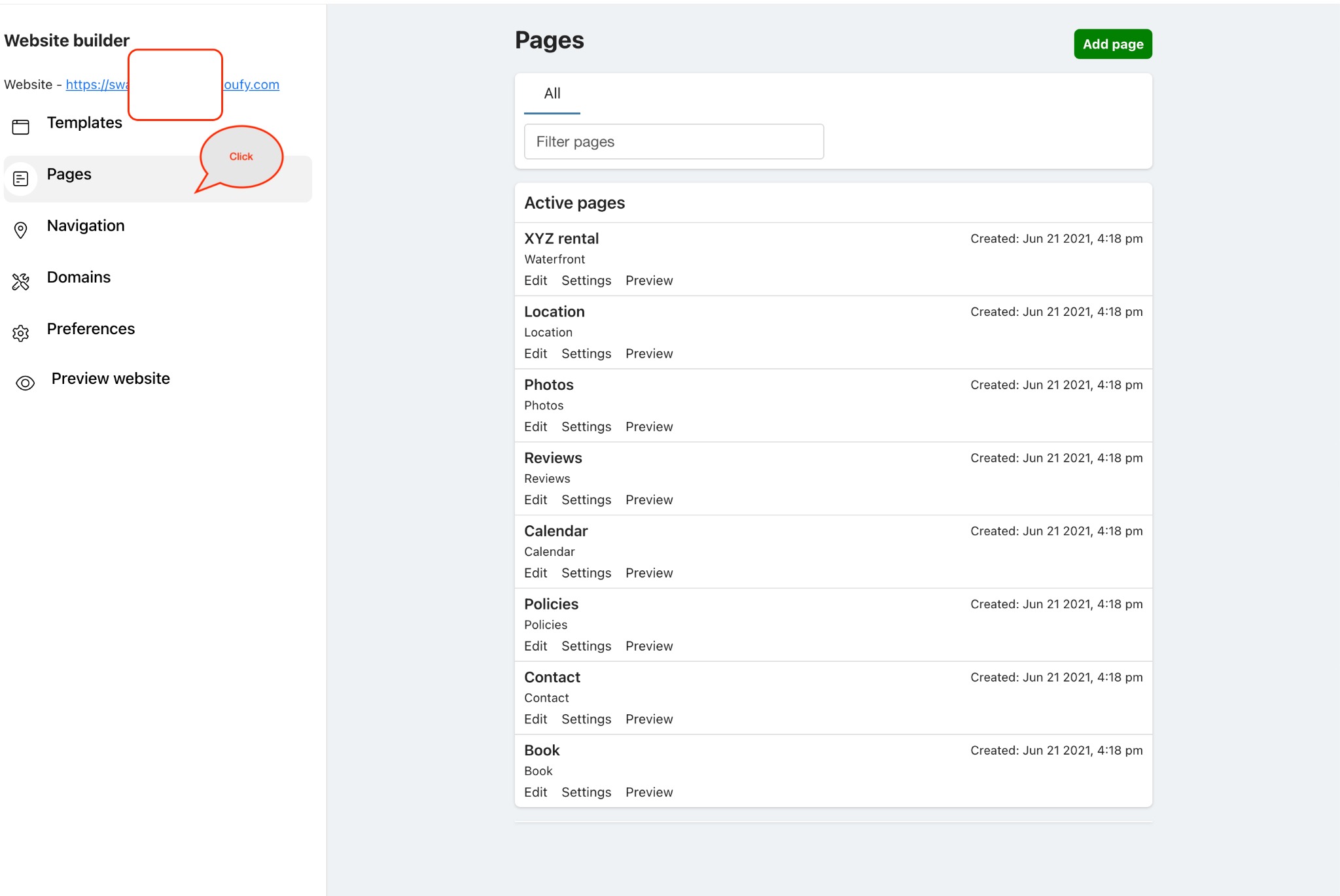
Select Pages from the left menu.
Click the title of the page you want to edit. (The gear icon at the end of the row opens that page’s settings instead.)
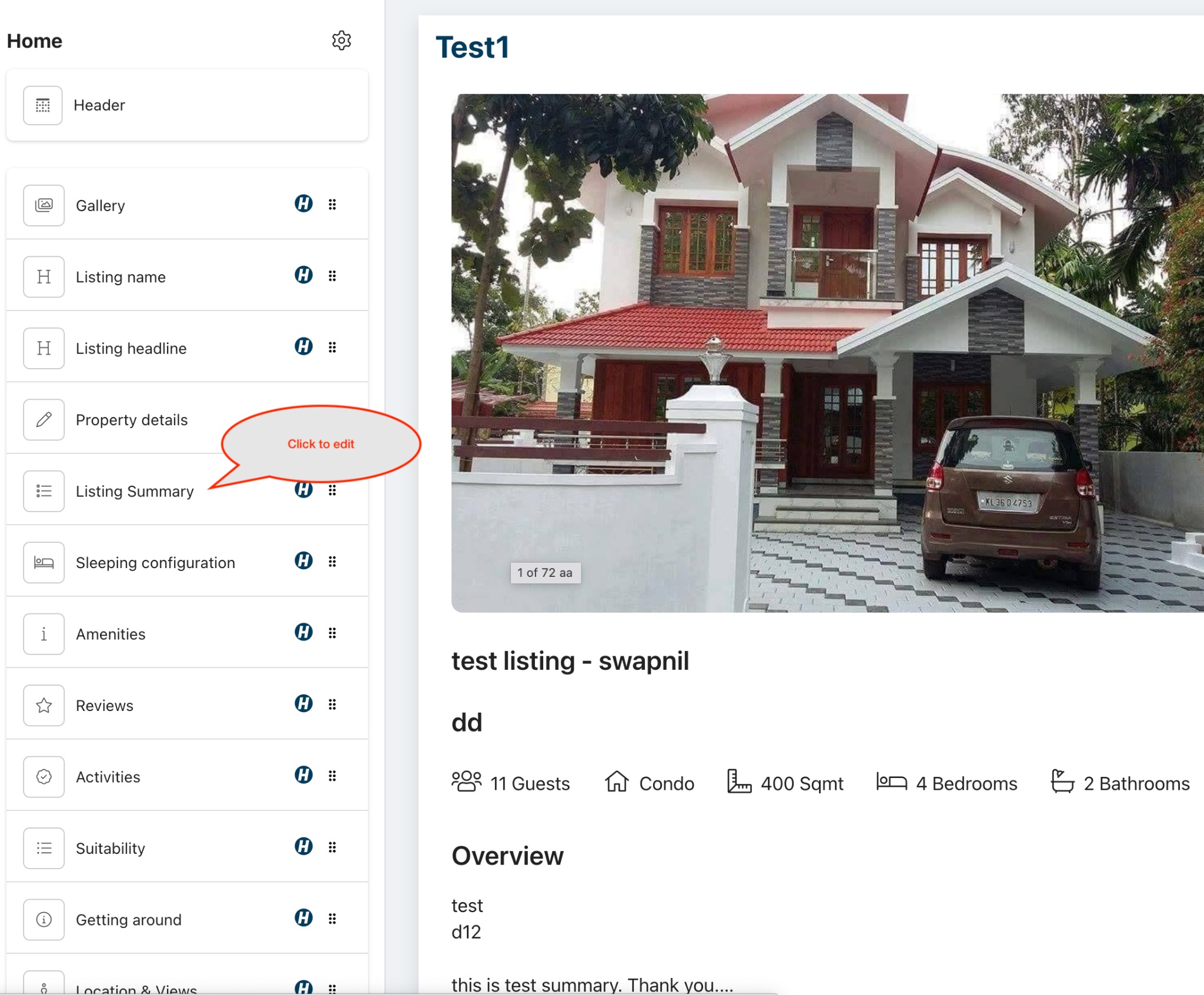
Click the section you want to change - for the listing summary, the Listing overview section.
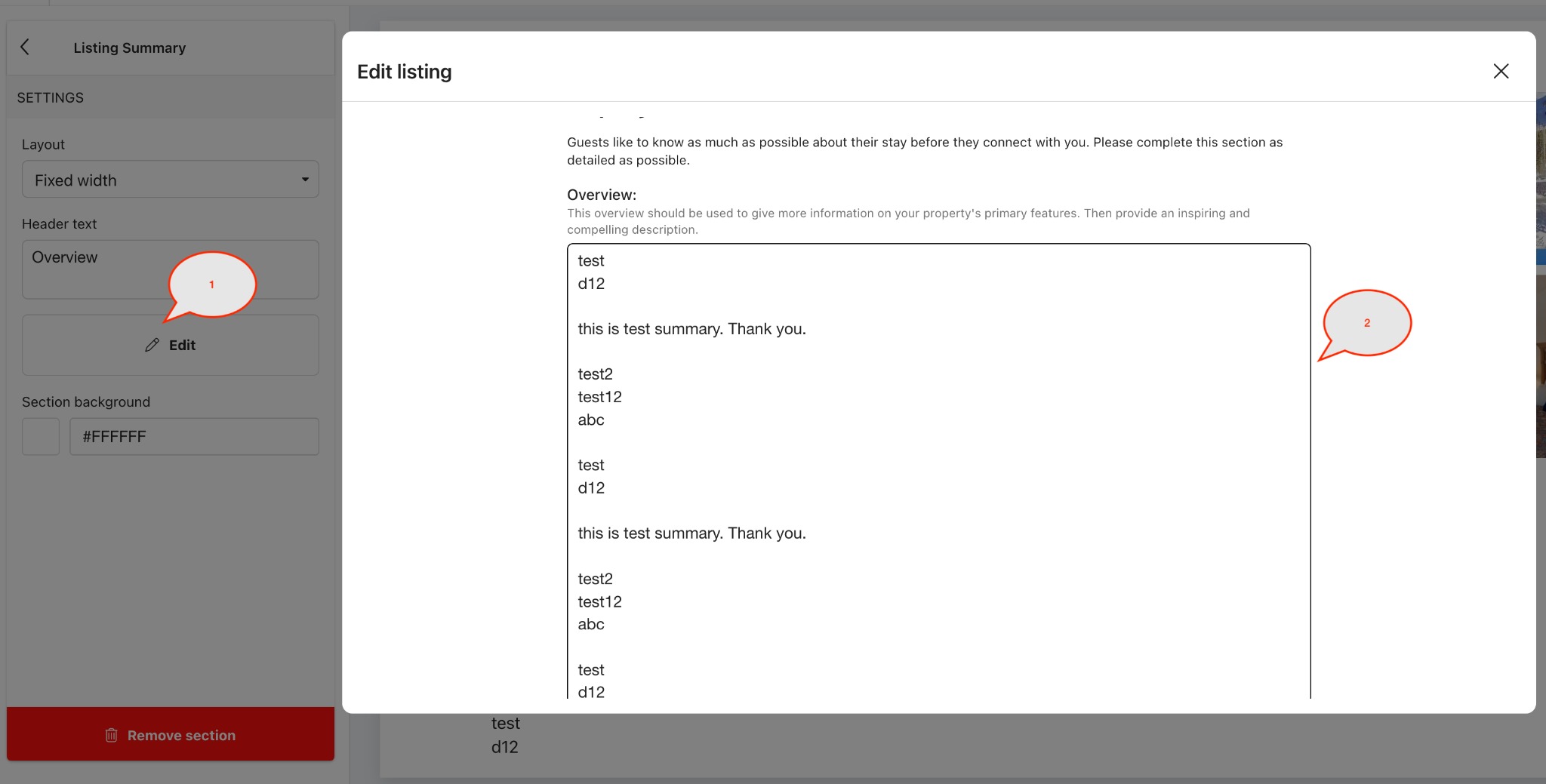
Click Edit. Your listing’s Overview page opens in a new browser tab.
Edit and save the overview there, then return to the website builder tab and reload the page to see it.
The settings in the section panel itself control how the section looks on this website - Layout, Block width, Hide on mobile, heading and text size, and whether the section is shown. Those apply to this website only.