Block dates on Houfy from your Google Calendar
Do you keep your bookings in Google Calendar? You can have Houfy block those dates automatically, so guests can't book nights you've already filled. It takes about five minutes and works on every Houfy plan.
Last updated October 19, 2026
First, how the two directions work
There are two separate things, and you'll probably want both:
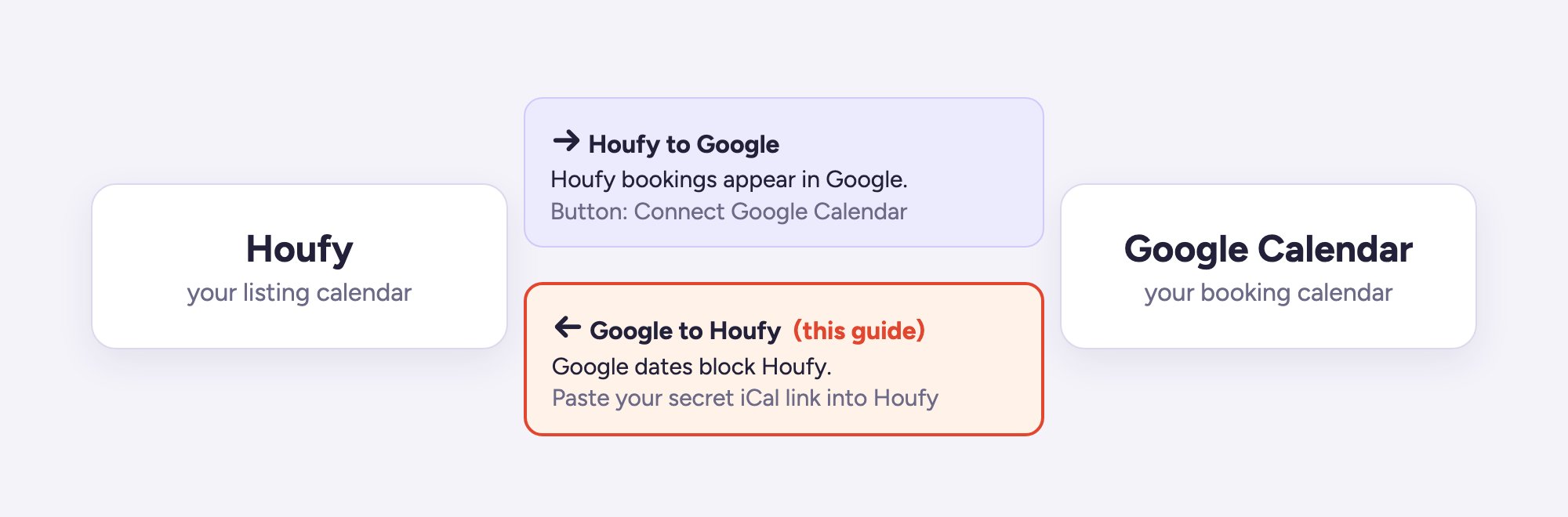
Houfy → Google: your Houfy reservations show up in your Google Calendar. Click Connect Google Calendar on your listing's Calendar page. See How to Sync Your Houfy Calendar with Google Calendar.
Google → Houfy: dates you block in Google Calendar are blocked on Houfy. That's what this guide covers.
Connecting Google Calendar does not make Houfy read your calendar. It only sends Houfy bookings to Google. For Houfy to see your Google dates, follow the steps below.
Step 1: Copy your calendar's secret link from Google
Do this on a computer. The Google Calendar phone app doesn't show this setting.
Go to calendar.google.com.
Click the gear icon ⚙ at the top right, then Settings.
On the left, under Settings for my calendars, click the calendar where you keep your bookings.
Click Integrate calendar.
Scroll to Secret address in iCal format. Click the copy icon next to it.
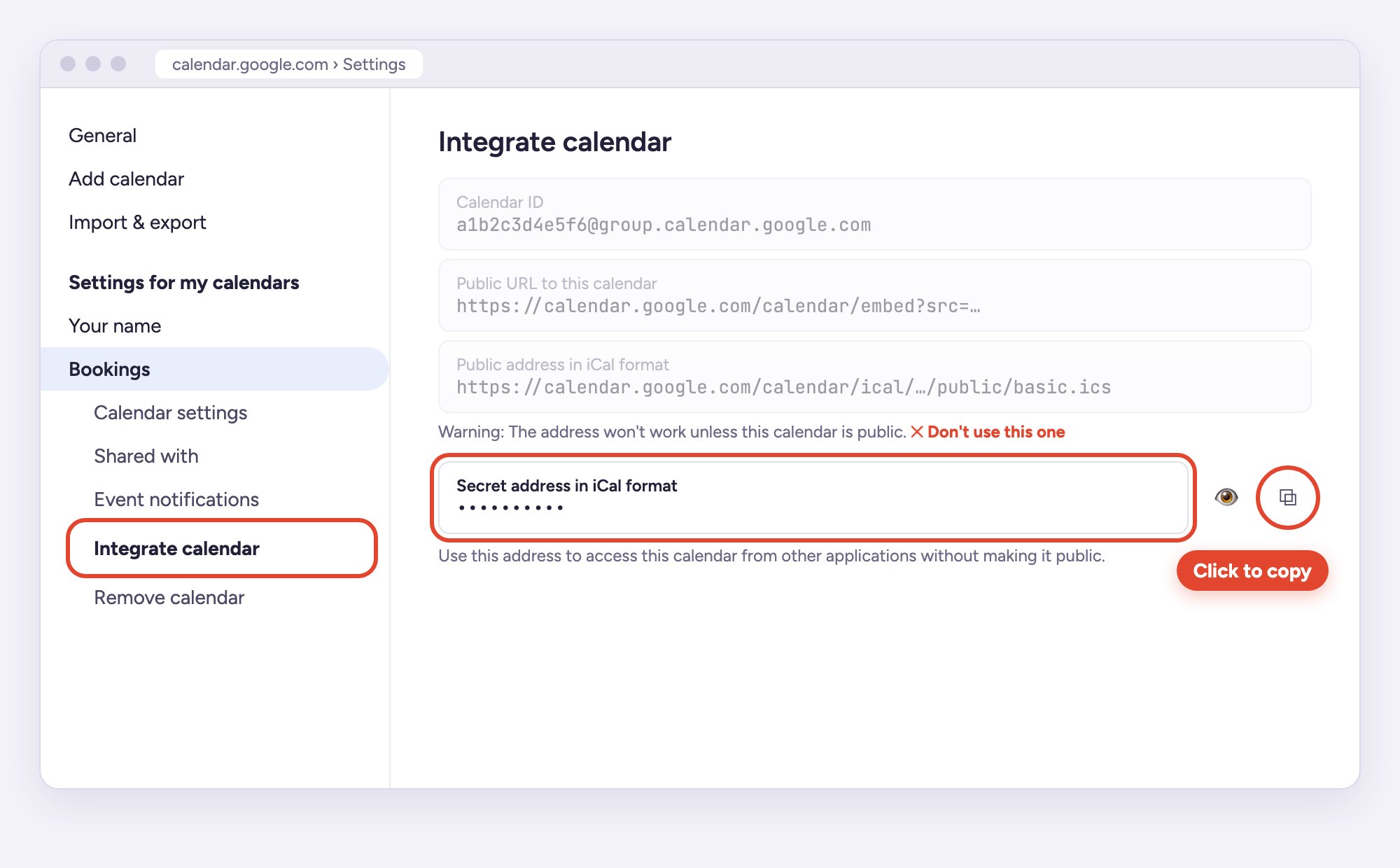
The link starts with https://calendar.google.com/calendar/ical/ and ends with /basic.ics.
Use the secret address, not the others on that page.
The Public address in iCal format only works if you make your whole calendar public, so anyone could see it.
The Get shareable link button gives a link for people with Google accounts, not one Houfy can read.
If you don't see a secret address, you're probably on a work or school Google account where your administrator has turned it off. Ask them, or use a personal Gmail calendar.
Don't pick a calendar whose name ends in “(Houfy)”.Houfy creates those when you connect Google Calendar, to hold your Houfy bookings. Importing one back into Houfy would make Houfy read its own bookings.
Step 2: Paste it into Houfy
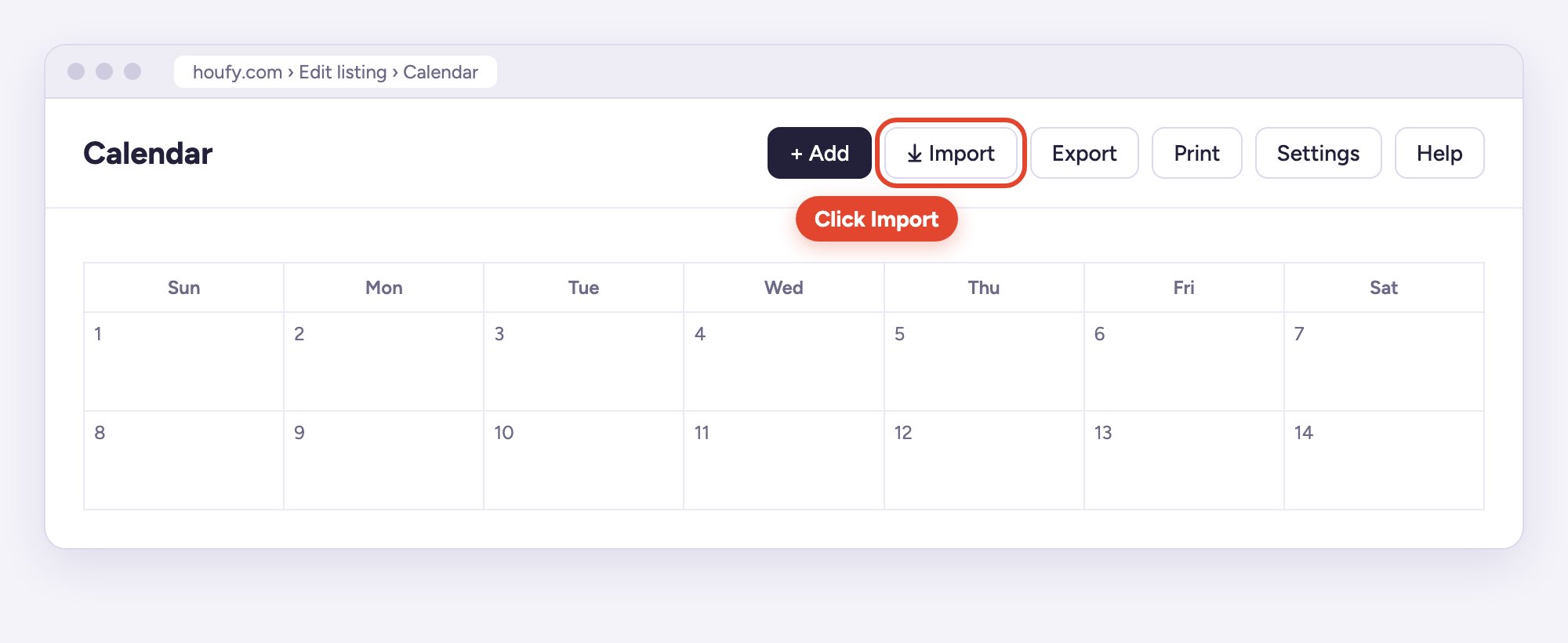
On Houfy, open your listing and go to its Calendar page.
Click Import at the top of the calendar.
Paste the link into iCal URL.
Give it a name if you like, for example “Google Calendar”.
Under Import Options, choose Everything.
Click Import Calendar.
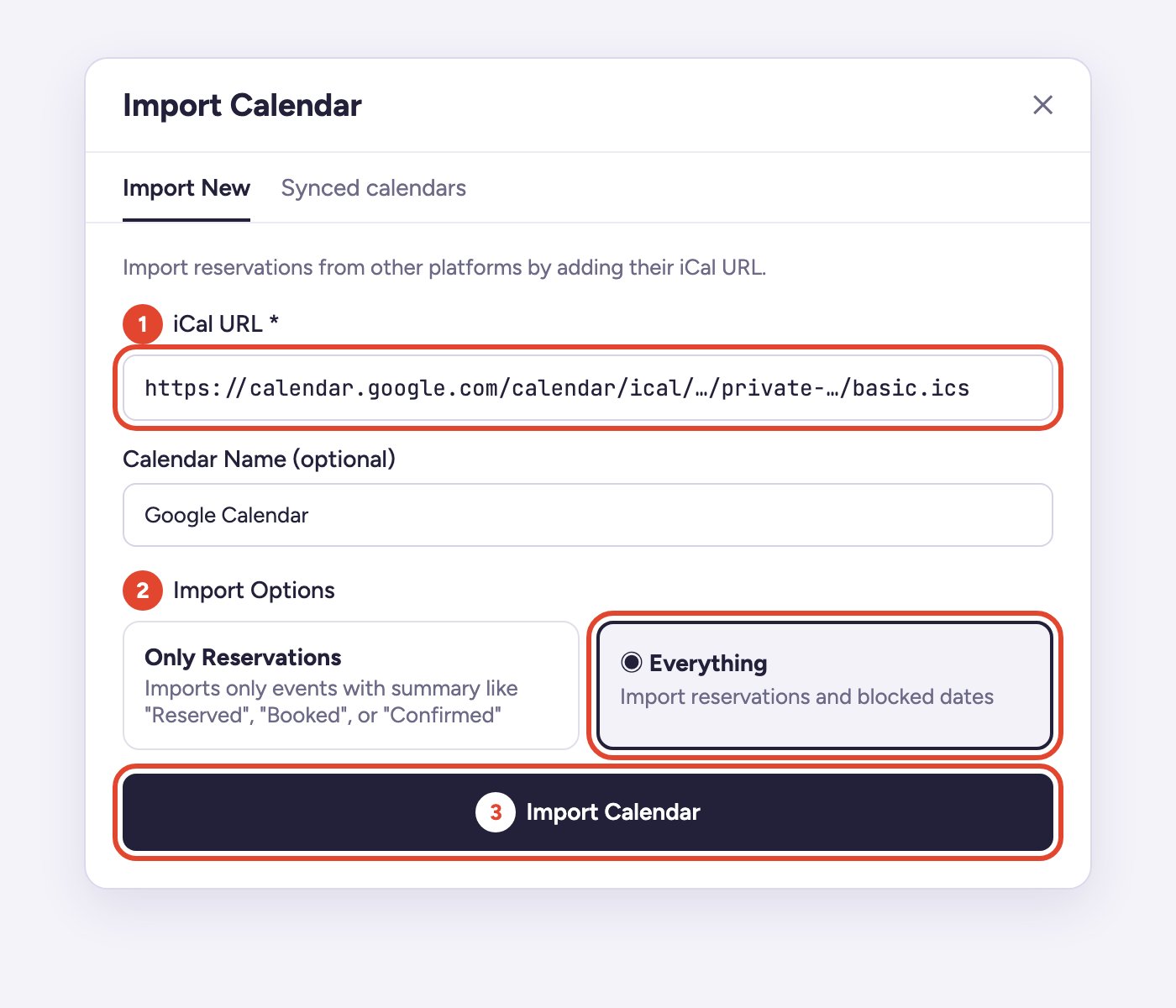
Why “Everything”?“Only Reservations” imports only events whose title contains “Reserved”, “Booked” or “Confirmed”. Most people don't title their Google events that way, so with “Only Reservations” nothing would be blocked.
That's it. Houfy now checks your Google Calendar regularly and blocks the dates for you. To see how often, read How often does the ical get synced in Houfy.
If you run more than one listing, repeat Step 2 on each listing with the link for that listing's calendar.
Step 3: Enter bookings in Google so Houfy can read them
Houfy only reads the dates of your Google events, not their times. To block the right nights:
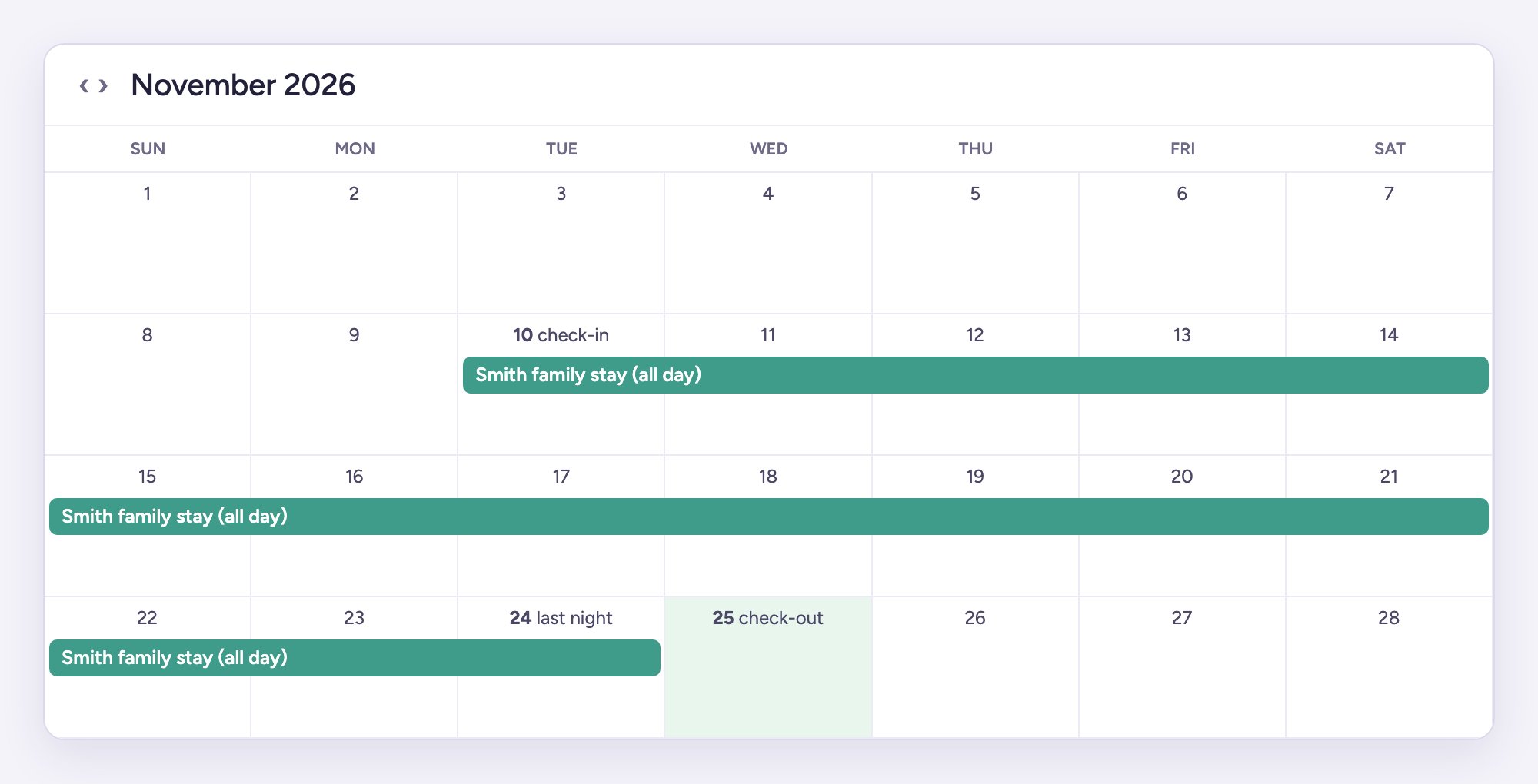
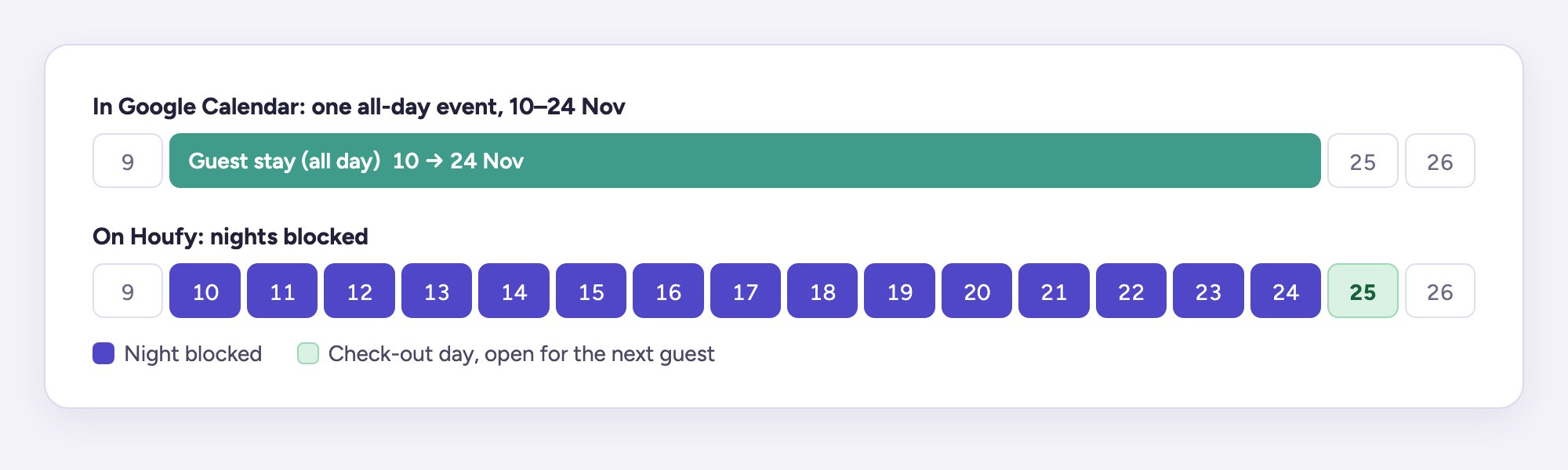
Make each booking one all-day event, from the check-in day to the last night of the stay.
For example, a guest checks in on 10 November and checks out on 25 November. In Google Calendar, create an all-day event from 10 Nov to 24 Nov. Houfy blocks the nights of 10–24 November, and 25 November stays open for your next guest to check in.
Night blocked on Houfy (your Google event, 10–24 Nov)Check-out day, open for the next guest
A few things Houfy does not block:
Events on a single day with a start and end time (for example a 3pm appointment). That's on purpose, so everyday appointments don't block nights. To block a single night, use an all-day event on that day.
Repeating events after the first one. If you create “every Friday”, only the first Friday is blocked. Create each booking as its own event.
Tip: keep a separate Google calendar just for bookings (in Google: Settings → Add calendar → Create new calendar) and import that one. Then your personal events never touch your Houfy availability.
Keep your link private
Anyone with your secret address can see every event in that calendar, so share it only with Houfy. If it's ever shared by mistake, go back to Integrate calendar in Google and click Reset. Then paste the new link into Houfy (Calendar → Import) and delete the old one.
Use both directions together
For a calendar that stays in step both ways:
Google → Houfy: import your booking calendar's secret link (this guide).
Houfy → Google: click Connect Google Calendar on the same Calendar page, so Houfy bookings also show in Google.
Houfy bookings go into a separate “(Houfy)” calendar that Houfy creates. Keep entering your own bookings in your booking calendar, not in the “(Houfy)” one.